
How to Use a Budget Planner to Stay on Track
Learn how to actually use a budget planner to organize your finances, stay consistent with your money goals, and make budgeting feel easy and doable. This post walks you through a step-by-step system to get started, stay on track, and finally feel in control of your spending — whether you're using a printable or digital version.
Written by Kelli, founder of The Pink Ledger with over a decade of experience in the finance industry.
7/7/20255 min read
Budgeting Doesn’t Have to Feel Like Punishment
For a long time, I thought budgeting meant giving up everything I loved. No Target runs. No Starbucks. No dinners out with friends. Just guilt, spreadsheets, and restriction.
But I learned something important: budgeting isn’t about deprivation — it’s about direction.
When you don’t have a plan, your money controls you. But when you do, you start telling your money exactly where to go.
That’s why I created The Pink Ledger Budget Template, available in both:
Google Sheets (automated with formulas + graphs)
Printable PDF (for those who love pen-and-paper planning)
This isn’t just another spreadsheet. It’s a system designed for beginners who feel overwhelmed, guilty, or stuck with money. And in this guide, I’ll show you exactly how to use it — step by step — to feel organized, confident, and finally in control of your finances.
Why Most Budgeting Systems Fail
Before we dive in, let’s be real: most people hate budgeting. Not because they’re “bad with money,” but because traditional systems don’t actually work for them.
Here’s why:
Too Complicated. Endless spreadsheets with formulas you have to figure out yourself.
Too Restrictive. Budgets that focus only on cutting — never on what you enjoy.
Too Overwhelming. Tools that track every penny but don’t give you real insight.
Too Cold. Numbers without motivation, reflection, or encouragement.
The Pink Ledger Budget Template solves all of this:
Pre-built formulas and charts so the math is done for you.
Visual feedback with pie charts, bar graphs, and progress trackers.
Reflection spaces so you can track mindset and progress, not just numbers.
How to Actually Use Your Budget Planner (Step-by-Step System)
A budget planner isn’t just a notebook or a spreadsheet — it’s your financial command center. It keeps everything in one place so you can stop second-guessing and start directing your money.
Here’s a simple system to make it work:
Step 1: Set It Up at the Start of the Month
Take 15–30 minutes to:
List income sources.
Add fixed expenses (rent, bills).
Estimate variable expenses (groceries, gas, fun money).
Set a monthly goal (like saving $200 or paying off a credit card).
With The Pink Ledger Budget Template, everything is pre-organized. Just fill in the blanks.
Step 2: Track as You Spend
Budgeting isn’t about perfection. It’s about awareness.
Check in 1–2 times a week.
Jot things down in the PDF with highlighters OR enter into the Google Sheet.
Don’t wait until the month ends — adjust as you go.
Step 3: Use Notes to Reflect
Numbers only tell part of the story. Reflection tells the rest.
Ask:
What worked this month?
Where did I overspend?
What surprised me?
Even small notes add clarity.
Step 4: Review + Reset Monthly
At the end of the month:
Add up your totals.
Compare to your budgeted amounts.
Check savings and debt progress.
Write down adjustments for next month.
What’s Included in The Pink Ledger Budget Template
Google Sheets Version
This is the heart of the system. Perfect if you want automation, graphs, and a visual way to track progress.
You’ll get:
12 Monthly Tabs — Income, fixed expenses, variable expenses, debt, and savings.
Automatic Formulas — Totals calculate instantly as you type.
Remaining Balance Tracker — Always know what’s left.
Graphs & Visuals — Category pie charts, 50/30/20 breakdowns, and bar graphs.
Annual Summary Tab — See your full year of income, expenses, debt, and savings.
Savings Goal Tracker — Add each goal, enter your deadline, and watch the progress bars fill up.
Notes Section — A space each month to reflect, track wins, and notice spending triggers.
Printable PDF Version
Prefer pen and paper? The printable PDF is designed to give you structure without math.
You’ll get:
Monthly Budget Pages — Income, expenses, debt, and savings.
Bill Calendar — Track due dates and reminders.
Debt Tracker — See balances decrease over time.
Savings Trackers + Challenges — Includes $250, $500, and $1,000 savings challenges.
Notes Pages — Jot down thoughts, reflections, or reminders.
Getting Started With the Google Sheets Template
It only takes a few minutes to get set up:
Download the link. After purchase, you’ll receive a Google Sheets file.
Make a copy. The file is view-only. Go to File > Make a Copy and save it to your Google Drive.
Name your template. Example: “My 2025 Budget Tracker.”
Open your monthly tab. Start with the current month or set it up for next month.
Fill in your categories. Income, fixed expenses, variable expenses, debt, and savings.
Pro Tip: It’s best to set up your budget before the month begins. But if you’re starting mid-month, don’t wait — just jump in.
How to Use the Monthly Tabs
Each monthly sheet is organized for clarity:
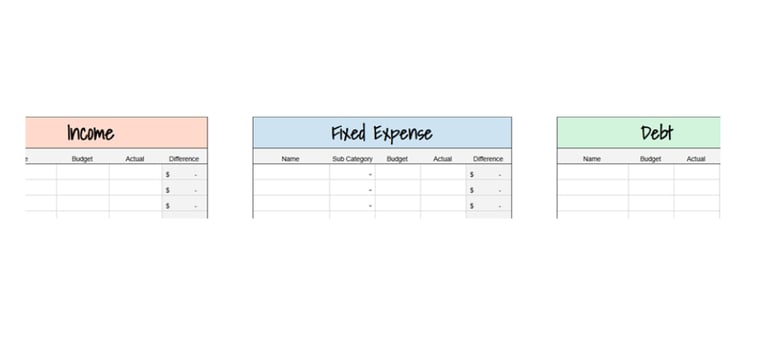
Income Section — Add your paychecks, side hustle income, or other sources. Totals calculate instantly.
Fixed Expenses — Rent, bills, subscriptions — the non-negotiables.
Variable Expenses — Groceries, gas, dining, fun. Bundle similar items if you need more space.
Debt — Enter minimum payments and any extra payments.
Savings — Add money moved into savings or investments.
As you enter your numbers:
A 50/30/20 pie chart updates to show balance between needs, wants, and savings.
A remaining balance total appears at the top.
The Annual Summary Tab
The annual view pulls all your monthly data into one big picture.
Here you’ll see:
Monthly income vs. expenses (bar graph).
Yearly totals for savings and debt payoff.
Spending category breakdowns.
Overspending patterns and trends.
This turns random monthly numbers into a story of your financial year.
The Savings Goal Tracker
This feature turns vague goals into actionable plans.
How it works:
Enter each savings goal.
Add goal amount, current saved, and target date.
The template calculates how much to save monthly.
Watch progress bars fill as you add money.
Tips for Success
Start small. Track top 3 categories if you feel overwhelmed.
Bundle expenses. Group “Household” or “Subscriptions” if needed.
Celebrate wins. Even $50 toward savings is progress.
Check in weekly. Consistency matters more than perfection.
Use the savings tracker. Motivation grows as the bar fills.
Why This Template Works
Because it combines:
Automation (formulas + graphs)
Reflection (notes + monthly resets)
Flexibility (digital + printable options)
Motivation (progress bars + challenges)
Real people use it to:
Pay off debt faster.
Build emergency funds.
Save for vacations stress-free.
Final Thoughts: Progress, Not Perfection
Budgeting doesn’t have to be overwhelming. With the right system, it can feel calming, clear, and even fun.
The Pink Ledger Budget Template gives you everything you need to:
✅ Track income, expenses, debt, and savings
✅ See automatic graphs and annual trends
✅ Use progress bars to stay motivated
✅ Choose digital or printable formats
❓ FAQ: Using a Budget Planner
Q: Do I need both a paper and digital planner?
A: Not at all! Choose the one that fits your style. Digital is great for automation, while printable is great if you prefer writing things down.
Q: How often should I update my planner?
A: Ideally once or twice a week. Daily if you’re just starting out, monthly at minimum.
Q: What if I miss a week?
A: Don’t stress. Just pick up where you left off — budgeting is about progress, not perfection.
Related Posts
The Pink Ledger
Empowers women to master their money with clarity and confidence—one smart step at a time.
Contact us:
Admin@thepinkledger.net
Copyright © 2025 The Pink Ledger. All Rights Reserved. This site is for educational purposes only and does not constitute financial advice.